

Safely Removing Team Members With Active API Keys
Overview
When you remove a team member from a Deepgram project, any API keys they created are automatically disabled. If those keys are in use in production, this causes an outage.
This guide explains how to safely offboard team members without disrupting your services.
Understanding API Key Ownership
In Deepgram, every API key belongs to a project but is created by a specific user. This distinction matters:
- The project controls what Deepgram products the key can access (speech-to-text, text-to-speech, voice agents, etc.) and how usage is billed.
- The user who created the key is its owner.
When you remove a user from a project, all API keys they created are automatically disabled — even if those keys are actively used in production. This security feature ensures former team members can’t retain API access, but it means you need to plan ahead when offboarding users.
Why It Works This Way
This ownership model provides:
- Security — when someone leaves your organization, their access is fully revoked.
- Accountability — you can track which team member created each key.
- Audit trail — key creation and usage is tied to specific users.
A key’s effective permissions are also limited by its creator’s role. If a user with the Owner role creates an Owner-scoped key and is later demoted to Admin, the key loses its Owner permissions too. This is another reason to create production keys with a stable service account rather than an individual whose role may change.
Before You Remove a User
When you attempt to remove a team member in Console, you’ll see a warning if they have active API keys.
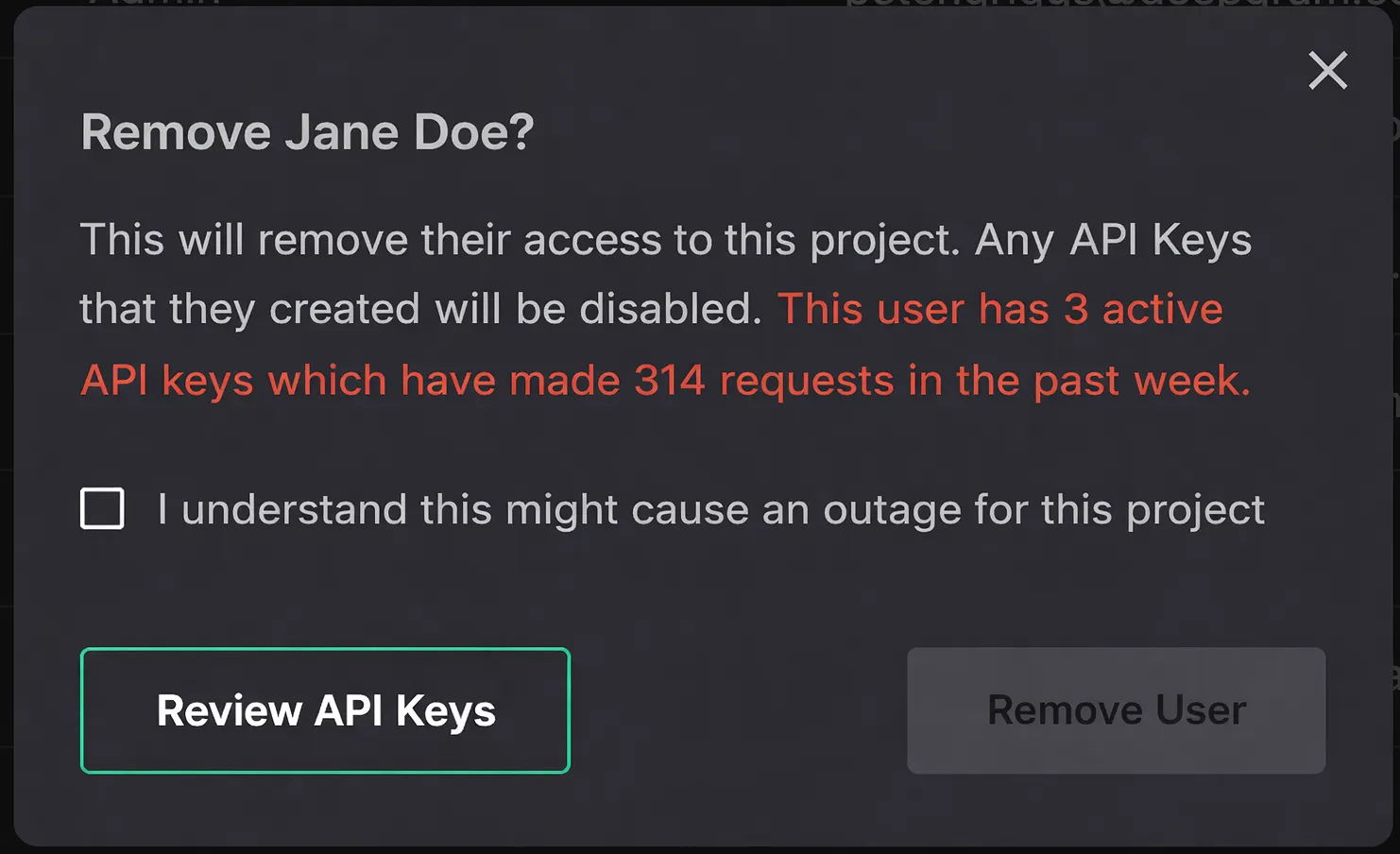
The warning shows:
- How many active API keys they created
- How many requests those keys have made in the past week
If you see this warning, do not proceed until you’ve completed the migration steps below.
Step-by-Step Migration Process
Step 1: Review the User’s Active Keys
The removal dialog already tells you how many active keys the user has and their recent request count. To see the details:
- In the removal dialog, click Review API Keys. This takes you to the API Keys page.
- Type the user’s name or email into the input to see only their keys.
Note the key names (comments) and Key IDs. You’ll need these to:
- Create replacements with similar names and purposes
- Verify traffic has moved later (in Step 4)
If the user created keys with descriptive names (e.g., “Production - Main App”, “Staging”), that gives you a clue about where they’re used. If names are generic, check Usage in Console to see request volume and patterns for each key, or ask your team which systems use which keys.
Step 2: Create Replacement Keys
For each active key that needs to be replaced:
- Go to API Keys in your project.
- Click Create a New API Key.
- Give it a clear, descriptive name (e.g., “Production - Main Application”).
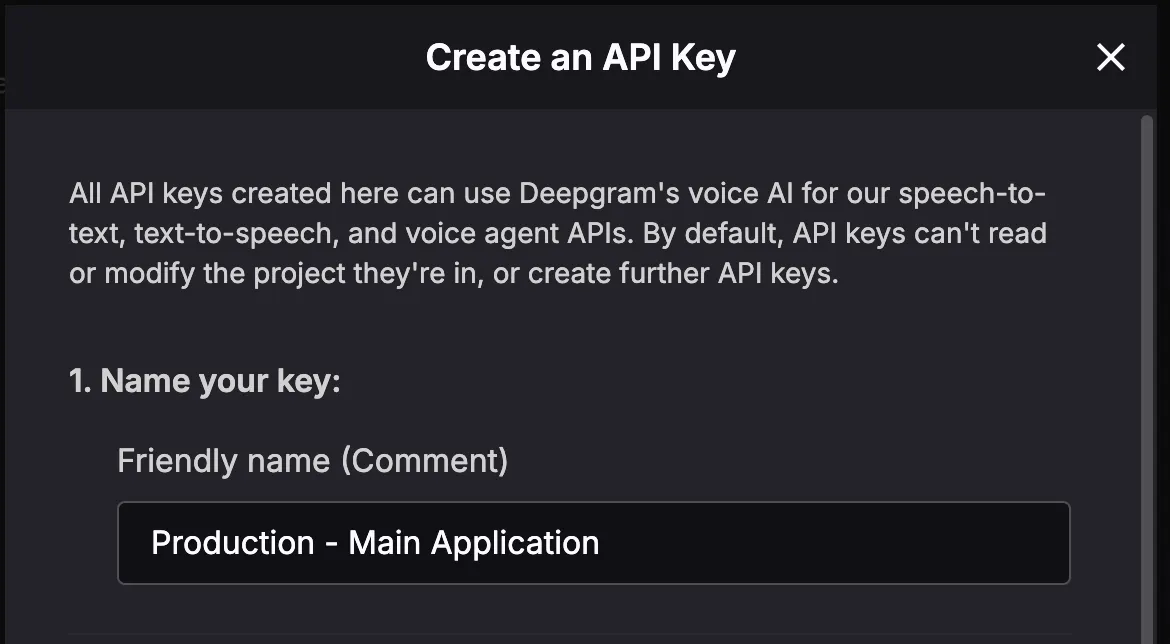
- Match the role of the key you’re replacing:
- If the old key had no role (default), leave the new one as default.
- If the old key had a role like Member, Admin, or Owner, select the same role.
- Most production keys use the default role (no management access), which is usually what you want.
- Set an expiration policy if desired.
- Add any tags used by the original key.
- Click Create Key.
Copy and securely store the secret immediately — it won’t be shown again.
To learn more about creating API keys, see Creating API Keys. To learn more about roles, see Working with Roles.
Create production API keys using a designated service account (for example, engineering@yourcompany.com) rather than an individual user.
Service accounts are less likely to be removed during normal team changes, reducing the need for urgent key rotation.
Step 3: Update Your Systems
Replace the old API key secret with the new one everywhere it’s used:
- Application configuration files
- Environment variables (local, staging, production)
- CI/CD secrets (GitHub Actions, etc.)
- Container orchestration (Kubernetes secrets, Docker configs)
- Third-party integrations that call Deepgram on your behalf
Deploy these changes to all environments before proceeding.
Step 4: Verify the Migration
Before removing the user, confirm that traffic has moved to the new keys:
- Go to the API Keys page and expand the old key to copy its Key ID.
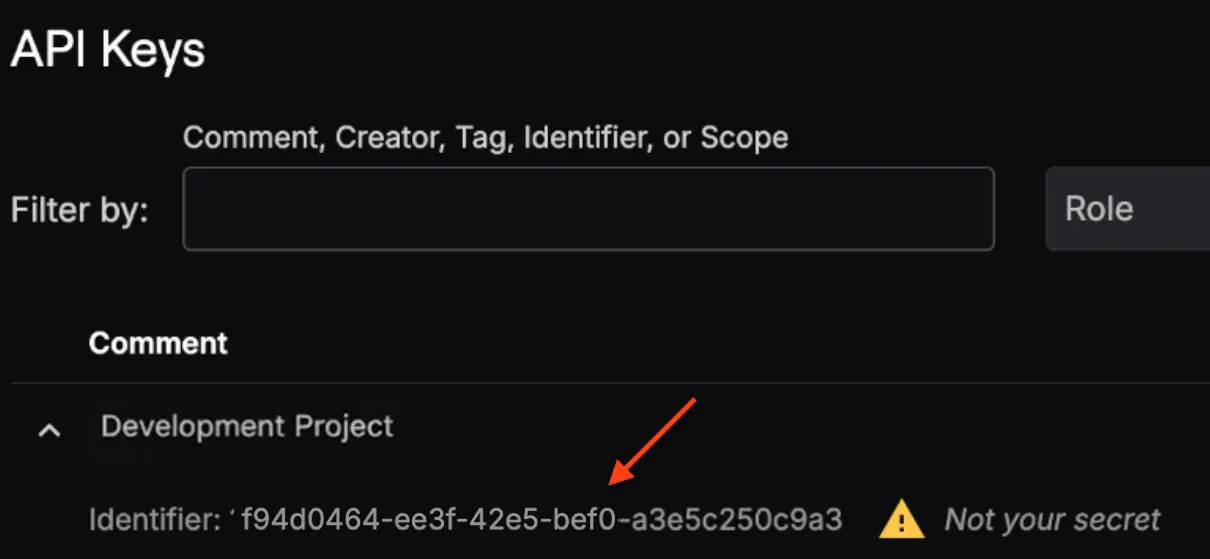
- Go to Usage > Logs.
- Paste the Key ID into the API Key ID filter.
- Set the date range to the last 7 days.
- Check if any requests appear.
When is it safe to proceed?
- If no requests appear for the old key in the last 7 days, it is generally safe to remove the user.
- For critical production systems, you may want to monitor for longer.
- If you still see requests, your systems haven’t fully migrated yet — update them and check again.
Wait at least one full week before removing the user to ensure no background jobs or low-frequency systems are still using the old key.
Step 5: Remove the User
Once you’ve confirmed the old keys have no active usage:
- Go to Project and Team.
- Click the trashcan icon next to the user’s name.
- Review the warning information.
- Check “I understand this might cause an outage for this project”.
- Click Remove User.
The user will lose access immediately, and all their API keys will be disabled.
Special Scenarios
The User Already Left and You Can’t Reach Them
You can still complete this process — you don’t need the departing user’s involvement. The key migration is done entirely by remaining team members with appropriate permissions.
The User Is the Only Owner
If the person you’re removing is the only Owner of the project:
- Have them grant Owner privileges to another team member first.
- Then proceed with the migration steps above.
If the owner is completely unavailable, contact Deepgram Support for assistance.
You Need To Remove the User Immediately
If you must remove the user before completing migration (e.g., a security incident), understand that:
- All their API keys will be disabled instantly.
- Any systems using those keys will start receiving authentication errors.
- You’ll need to create new keys and update your systems as quickly as possible.
In this case, prioritize creating new keys and updating your most critical systems first.
Tips for Avoiding This in the Future
- Use service accounts for production keys — for example,
engineering@company.com. - Document key usage — give each key a descriptive name and tag it with the service or environment it runs in (e.g.,
production,staging). This makes migrations quick when needed. - Rotate keys periodically — regular rotation keeps your team practiced and limits exposure.
- Have multiple Owners — ensures someone can always manage the project if one owner leaves.
Questions? If you need help with this process or have questions about API key management, contact Deepgram Support.