

Auto-Scaling Real-Time Endpoints
Use the CloudWatch ConcurrentRequestsPerModel metric to automatically scale your Amazon SageMaker real-time endpoints based on concurrent in-flight requests.
A Deepgram real-time endpoint serves two kinds of requests: streaming over a bidirectional stream (InvokeEndpointWithBidirectionalStream, up to 30 minutes each) and synchronous pre-recorded requests (InvokeEndpoint — a single file up to 25 MB, returned in one immediate response, Deepgram’s “batch” API). Both are in-flight invocations that load the instance, so concurrent requests is the right scaling signal — which is why the high-resolution ConcurrentRequestsPerModel metric is ideal here.
Need scale-to-zero? Real-time endpoints keep a minimum of one instance and cannot scale to zero. Scale-to-zero (via asynchronous endpoints) is temporarily unavailable for Marketplace-hosted Deepgram; if your use case needs it, contact a Deepgram representative.
Before configuring auto scaling, you must have a Deepgram SageMaker Endpoint deployed and running with status InService. See Deploy Deepgram on Amazon SageMaker for setup instructions.
How it works
Amazon SageMaker integrates with AWS Application Auto Scaling to add or remove instances backing your endpoint. When you create a target tracking scaling policy with the ConcurrentRequestsPerModel metric, SageMaker:
- Monitors the number of concurrent in-flight requests (streaming connections and synchronous pre-recorded requests) per instance.
- Triggers a scale-out when concurrency exceeds your target value.
- Triggers a scale-in when concurrency drops below the target value.
Because ConcurrentRequestsPerModel is a high-resolution metric (10-second intervals), SageMaker detects the need to scale out up to 6x faster than standard one-minute metrics such as InvocationsPerInstance.
Prerequisites
- A deployed Deepgram SageMaker Endpoint with status
InService - AWS IAM permissions for Application Auto Scaling:
- IAM Policy:
AmazonSageMakerFullAccess - IAM Policy: Application Auto Scaling identity-based policies
- IAM Policy:
- The AWS CLI installed and configured, or the AWS SDK for Python (boto3) available in your environment
Use multiple instance types for resilience
For improved availability, configure your endpoint with multiple instance types so SageMaker can fall back to an alternative pool when your preferred instance type is constrained. This applies to both real-time and asynchronous endpoints. See Use multiple instance types for resilience in the parent guide for configuration details and code examples.
Register the scalable target
Before you can attach a scaling policy, register your SageMaker Endpoint variant as a scalable target with Application Auto Scaling. This defines the minimum and maximum instance count for horizontal scaling.
AWS CLI
Python (boto3)
Replace YOUR_ENDPOINT_NAME with the name of your SageMaker Endpoint. AllTraffic is the default SageMaker Endpoint Variant name assigned when you create an endpoint with a single production variant. If you configured a custom variant name, replace AllTraffic with that name. Adjust --min-capacity and --max-capacity to match your expected traffic range.
Create a target tracking scaling policy
Define a target tracking policy that uses the ConcurrentRequestsPerModel high-resolution metric. The TargetValue represents the desired number of concurrent streaming connections per instance. When the average concurrency across instances exceeds this value, SageMaker adds instances. When it drops below, SageMaker removes instances.
AWS CLI
Python (boto3)
Save the following policy configuration to a file named scaling-policy.json:
Apply the policy:
Configuration parameters
Choose a target value
The correct TargetValue depends on your instance type, Deepgram model, and feature configuration. Streaming connections hold GPU resources for the entire session, so each instance supports a finite number of concurrent streams at acceptable latency.
To determine the right target value:
- Deploy a single instance and open concurrent streams incrementally, using the same request parameters your application sends (model, language, interim results, smart formatting, diarization, keyterms, and so on).
- Monitor response latency. The Measuring streaming latency guide describes how to benchmark.
- Identify the concurrency level at which average latency remains below 400 ms.
- Set
TargetValueto approximately 70-80% of that limit to give the auto scaler time to add capacity before latency degrades.
For example, if one instance handles N concurrent streams at acceptable latency, set TargetValue to roughly 0.7–0.8 × N.
Per-instance capacity varies several-fold with the request parameters — interim results, smart formatting, diarization, keyterms, and multilingual settings each change how much work a stream costs — so a number measured with one configuration does not transfer to another. Measure with your real request parameters, or contact a Deepgram representative for a planning estimate for your workload.
If your endpoint uses heterogeneous instance pools, the predefined ConcurrentRequestsPerModel metric is not sufficient on its own because per-instance capacity varies across pools. Follow the AWS guidance on driving the scaling policy from a weighted custom metric for mixed fleets. See Use heterogeneous instance type endpoints for details.
Verify the scaling policy
After applying the policy, confirm it is active:
AWS CLI
Python (boto3)
You can also view the auto scaling configuration in the Amazon SageMaker console under Endpoints > your endpoint > Endpoint runtime settings.
Monitor scaling activity
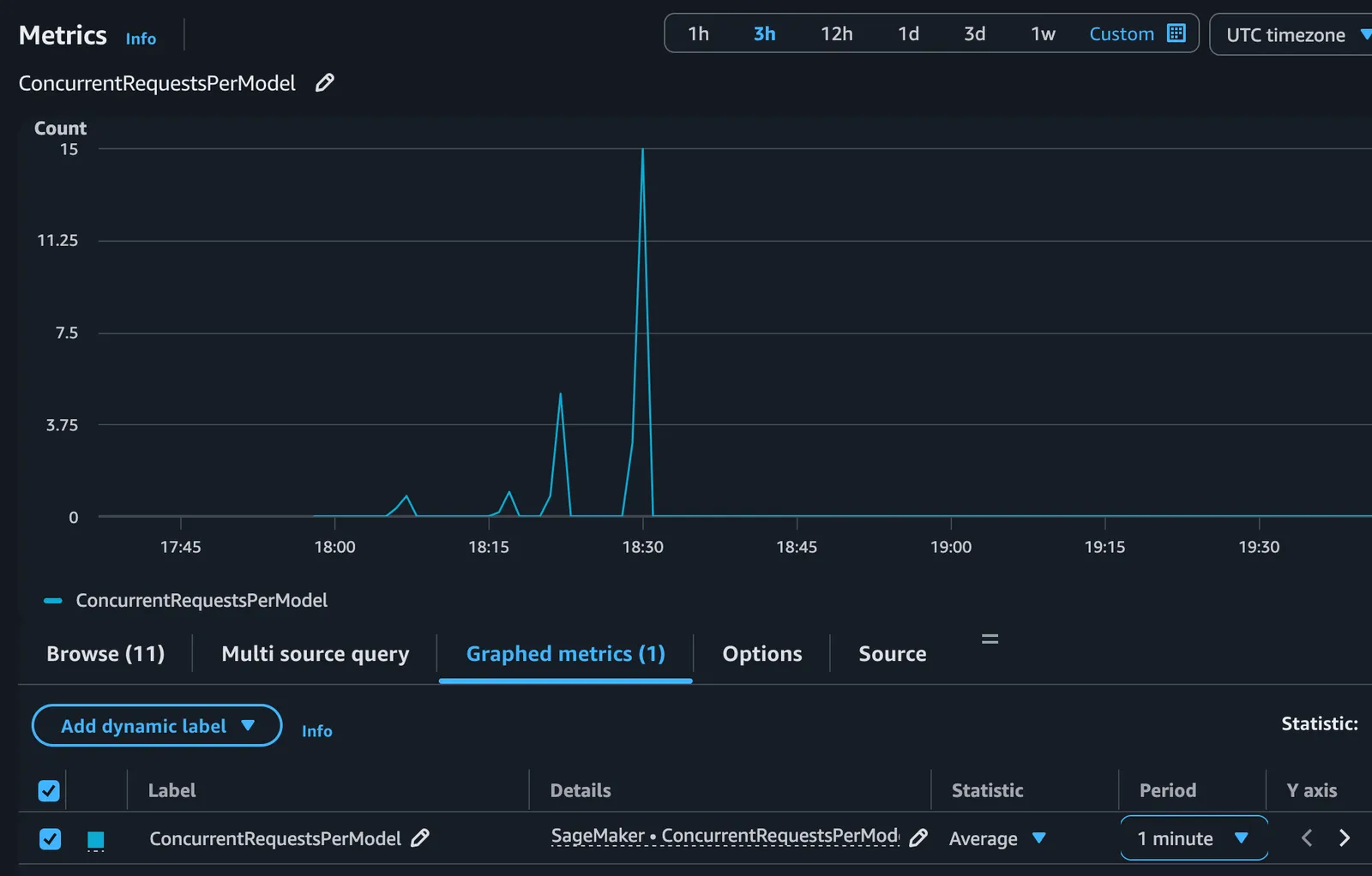
Amazon CloudWatch automatically creates alarms when you apply a target tracking policy. You can monitor these alarms and the scaling activity in the CloudWatch console.
Key metrics to watch in the AWS/SageMaker namespace:
To view scaling events:
FAQ
Does auto-scaling scale down to 0 during periods of no traffic?
Not for real-time endpoints. SageMaker managed auto-scaling for real-time endpoints requires a minimum of 1 instance and scales between your configured minimum and maximum (both ≥ 1). To reduce costs during idle periods, you can delete and recreate endpoints via scheduled orchestration or workload-triggered provisioning — or use Auto-Scaling Asynchronous Endpoints, which do support scaling to zero.
What’s Next