

Configure Amazon SageMaker Deployments
Deepgram on Amazon SageMaker supports runtime configuration through environment variables. When your SageMaker Endpoint starts, the container reads these variables and applies them to the appropriate configuration files (api.toml and engine.toml) before launching Deepgram services.
Use environment variables to tune settings for a specific SageMaker deployment, such as specifying the maximum number of streams for Flux or adjusting the step parameter for interim results (Nova-3).
In most cases, you don’t need to set these variables. Overriding these settings can prevent the application from starting correctly. The most common use case is setting the maximum number of requests per instance to prevent overloading.
Environment variable format
Each environment variable targets either the API server (api.toml) or the speech engine (engine.toml) based on its prefix.
The suffix after the prefix (for example, 01, 02) is arbitrary and distinguishes multiple variables targeting the same file. Variables are applied in alphabetical order by name.
Value syntax
- Dotted key path: Maps to TOML section hierarchy. For example,
chunking.streaming.stepsets thestepkey inside[chunking.streaming]. - Value types: Integers, floats, booleans (
true/false), and quoted strings. - Multiple settings: Use separate environment variables with different suffixes.
Configuration examples
Specify maximum engine requests
Disable entity detection (speech-to-text)
Specify maximum Flux streams
This is separate from max_active_requests and is specific to the Flux streaming transcription model.
Tune streaming chunk size
Require GPU on startup
Do not set this option to false.
Apply multiple settings
Use incrementing suffixes to apply multiple settings to the same file:
Set environment variables in SageMaker
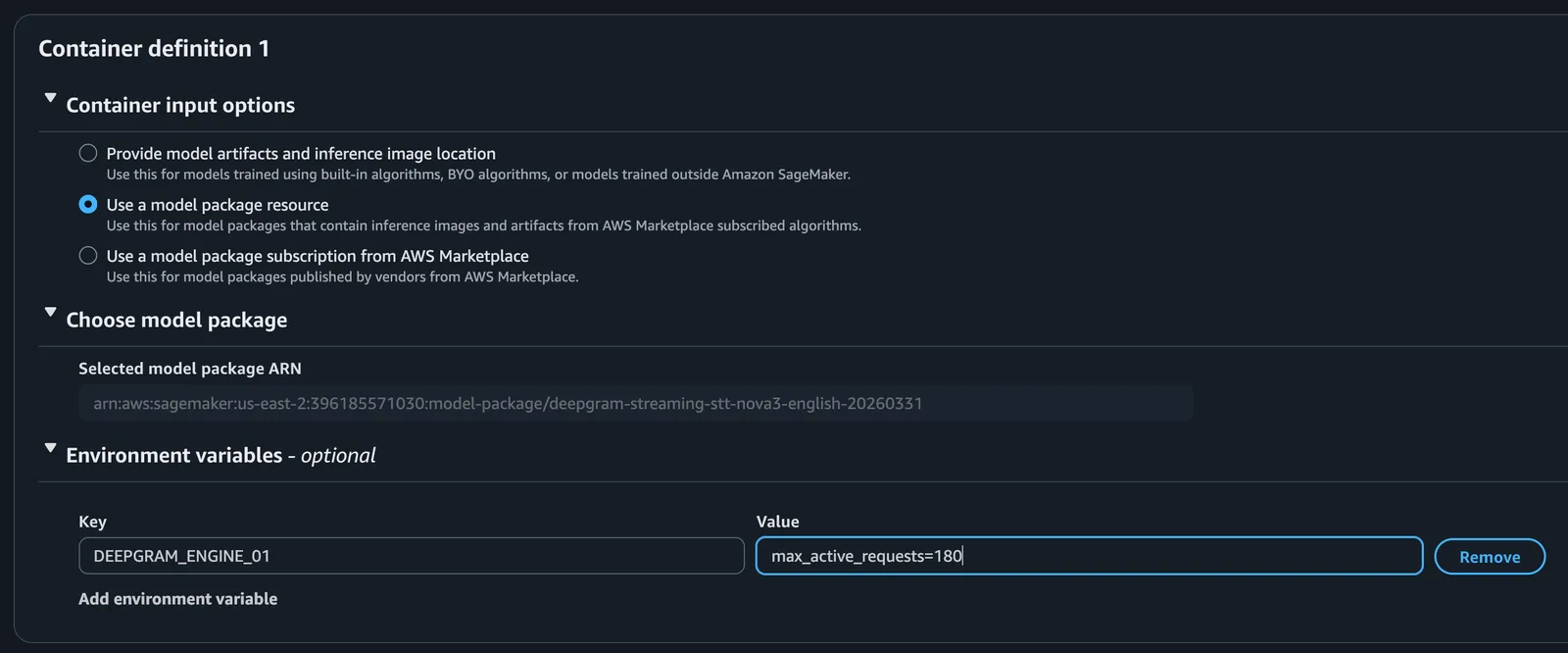
Environment variables are set at the Model level in SageMaker and passed to the container at runtime.
AWS Management Console
Navigate to the Amazon SageMaker AI console
AWS CLI
Create the SageMaker Model resource from a Model Package Amazon Resource Name (ARN). See Find the Model Package ARN for how to obtain it.
If you create the model directly from an ECR image, use --primary-container with Image=... instead.
AWS SDK for Python (Boto3)
Verify configuration
After your Endpoint reaches InService status, check Amazon CloudWatch Logs for the Endpoint to confirm variables were applied. Look for log lines similar to:
Troubleshooting
Maximum environment variables supported
Deepgram supports a maximum of 8 environment variables each for the API server and engine. Suffixes range from 01 to 08.
Setting does not take effect
Check CloudWatch Logs for warning messages indicating a variable was skipped due to a parse error.
Parse error in CloudWatch Logs
- Quote string values within the value expression:
driver_pool.standard.url="https://engine:8080/v2" - Boolean values do not require quoting:
features.listen_v2=true
Environment variable support not enabled
AWS requires whitelisting support for environment variables on SageMaker product listings. If you receive the error:
An error occurred (ValidationException) when calling the CreateModel operation: Environment variable map cannot be specified when using a ModelPackage subscribed from AWS Marketplace.
Contact Deepgram Support for help enabling it for that product.
Support
For a complete reference of available TOML configuration keys, refer to the api.toml and engine.toml files in the Deepgram self-hosted GitHub repository, or contact Deepgram Support.